Are Your Visitors Actually Getting WebP? How Image Delivery Works in WordPress
By Harshit Arora · Nov 2, 2026 · 6 min read
On this page
The short answer: Converting images to WebP or AVIF is only half the job. The other half is delivery: getting each visitor’s browser the new file instead of the old JPEG. WordPress plugins do it in one of three ways (a picture tag, a server rewrite or swapping image links), and each can quietly fail in a different place. A two-minute check in your browser shows what visitors really get.
You installed an image plugin, it proudly reports 2,000 images converted to WebP, and PageSpeed Insights still flags your images. It’s one of the most common head-scratchers in WordPress performance.
Very often the files are fine. They’re sitting on your server, smaller and ready. Visitors just never receive them, because nothing told their browser to ask for the new version. It’s like translating your restaurant’s menu and leaving the old one on every table.
This post covers how WebP and AVIF files actually reach visitors in WordPress, how to check it on your own site, and the usual reasons it fails. If you’re still deciding between the two formats, the AVIF vs WebP comparison on the Themeisle blog covers that side.
Why converting isn’t the same as serving
When a plugin converts an image, WordPress keeps the original. The WebP version is saved next to it, usually as photo.webp or photo.jpg.webp.
Your posts and pages still point to photo.jpg. Until something changes either the page or the way the server answers, every visitor downloads the JPEG, and the WebP file just takes up disk space.
That “something” is the delivery method, and it’s the setting most people never look at.
The three ways WordPress plugins deliver WebP
1. The picture tag
The plugin adds a small wrapper around each image on your pages that lists every version it has: AVIF, then WebP, then the original JPEG. Each browser picks the first one it can show.
It works on any host with nothing to set up, and it plays nicely with caching plugins and CDNs. The catch: because it changes how images are wrapped, a few themes display them slightly differently, so check your layout after switching it on. It also can’t reach background images, like the photo behind a hero section.
2. A server rewrite
Your pages stay exactly as they were. When a browser asks for photo.jpg, the server checks which formats that browser supports and quietly sends the WebP file instead, under the same name.
Nothing on the page changes, and it covers background images too. But it needs rules on your server. Hosts running Apache or LiteSpeed usually pick them up automatically; on nginx hosting, someone has to add them by hand, usually your host.
It also needs your cache to keep a separate copy for each format. Otherwise the WebP version saved for one visitor gets shown to everyone. If you use Cloudflare, that’s an option you have to switch on. And Safari can show AVIF but doesn’t say so when it asks for images, so this method sends Safari WebP instead.
3. URL replacement
The plugin changes the image links on your pages from photo.jpg to photo.webp. It’s the simplest method and works on any host. On its own, though, it sends WebP to every visitor, with no backup for browsers that can’t show it. Some plugins check the browser first; others don’t. With around 97% of browsers supporting WebP today, the risk is small, but it isn’t zero.
How to check what your visitors actually get
You don’t need any tools beyond Chrome (Edge and Firefox work almost the same way):
- Open one of your pages in a private window, so you see it like a logged-out visitor. Many caching setups treat logged-in admins differently.
- Right-click anywhere, choose Inspect, and open the Network tab.
- Click the Img filter and reload the page.
- Look at the Type column.
webporavifmeans delivery works.jpegorpngmeans visitors still get the originals. - With a server rewrite, the file name still ends in .jpg. Click it and look for
image/webpnext to Content-Type.
Tip: Check two or three different pages, including one built with your page builder and your homepage. Delivery often works in blog posts and fails in sections built differently.
Common reasons visitors still get JPEGs
- Background images. Hero sections and page builder backgrounds are often added as backgrounds, which the picture tag can’t reach.
- Images outside the Media Library. Logos and graphics built into your theme, or images loaded from another website, usually aren’t converted at all.
- Old cached pages. Your page cache or CDN may still hold pages saved before you turned delivery on. Purge both after changing the setting.
- Server rules that never ran. Some hosts (those running nginx) ignore the rules a plugin adds automatically.
- Images that were never converted. Many plugins only convert new uploads until you run a bulk optimization on the existing library.
Which delivery method should you use?
For most WordPress sites, the picture tag is the safest default. It needs no server access, works behind any cache or CDN, and always leaves a fallback.
Switch to a server rewrite if your theme’s layout breaks with the picture tag, or if most of your heavy images are backgrounds, and only if you (or your host) can manage the server and cache settings. Treat plain URL replacement as a last resort, unless your plugin adds its own browser detection.
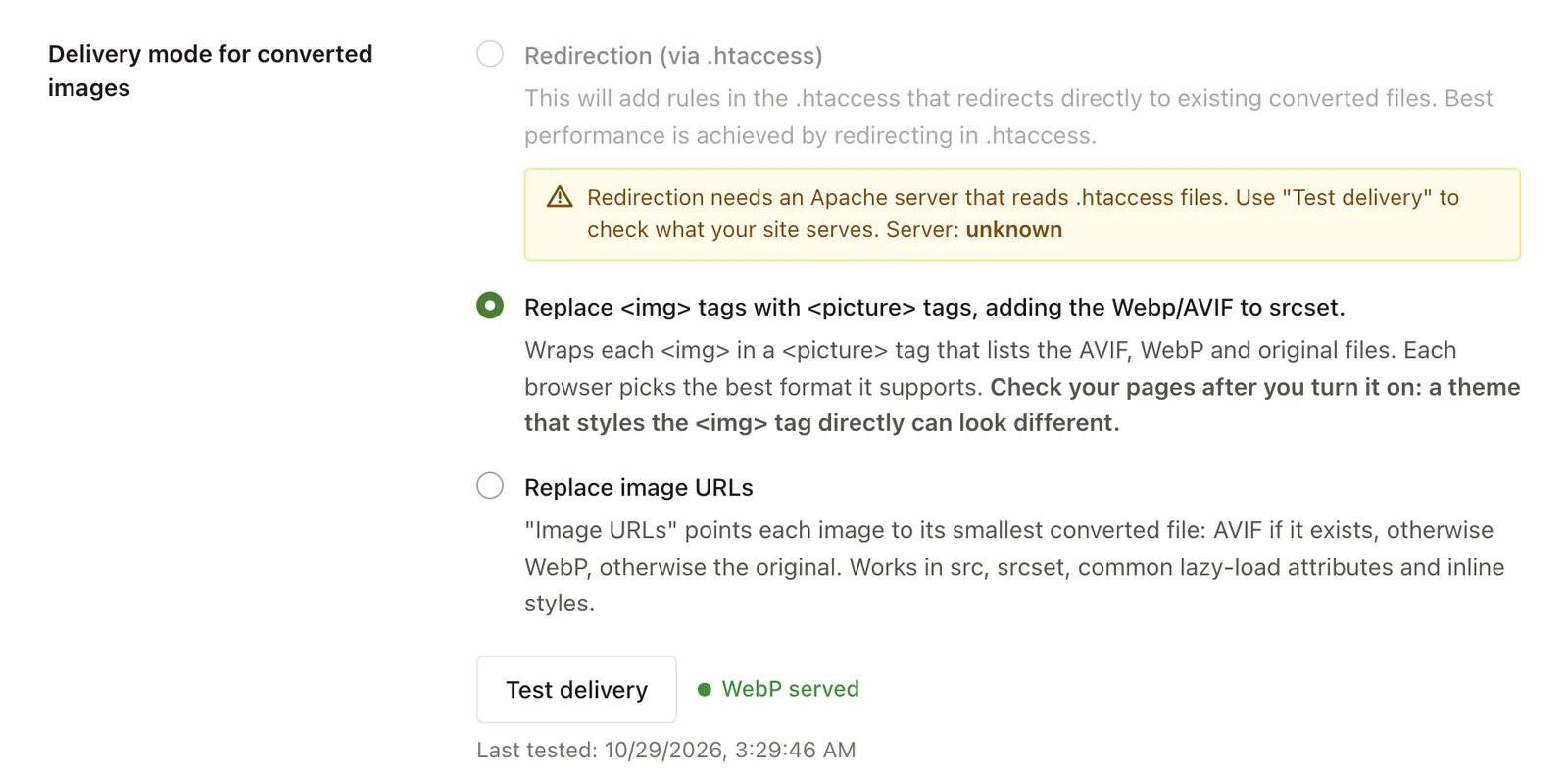
Robin, our plugin (so weigh this accordingly), uses the picture tag by default and also offers link replacement and a server option for Apache hosting. WebP conversion and delivery are free; AVIF is part of Robin Pro.
Its settings also have a Test delivery button, which loads a few test images from your site in your browser and reports which format actually arrived.
Frequently asked questions
Does serving WebP change my image URLs?
Will visitors on old browsers see broken images?
Should I delete the original JPEGs after converting?
Why does PageSpeed Insights still flag my images after converting?
Bottom line
Converting images to WebP is the easy half. Delivery decides whether visitors ever see the savings, and it’s the setting most people leave on a default they’ve never checked.
Open one of your pages in a private window and look at the Type column: two minutes tells you where you stand. If it still says jpeg, fix the delivery method before blaming the compression. And if most of your images were uploaded before you installed an optimizer, optimize the existing library first, because a file that was never converted can’t be served.