What’s New in Robin 2.1
By Harshit Arora · Nov 3, 2026 · 3 min read
On this page
The short answer: Robin 2.1 brings new, simpler admin pages. Bulk optimization now shows what it will do before it starts, can be paused, and tells you exactly why an image failed. A new Test delivery button checks that visitors really get WebP, and Robin is ready for WordPress 7.1.
Robin 2.1 is about trust: knowing what Robin is doing, what it did, and whether your visitors see the result. Here’s what’s new.
New, simpler admin pages
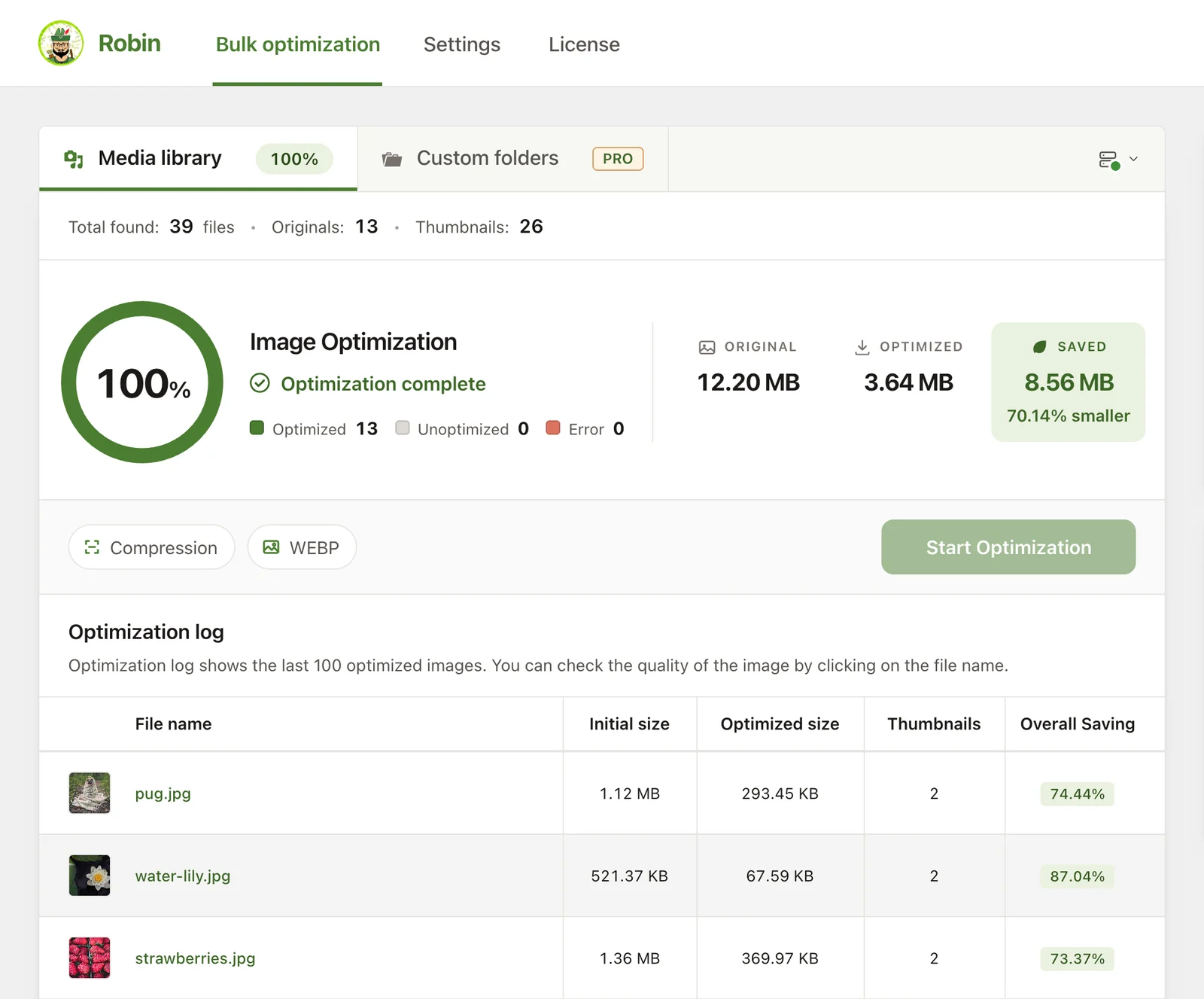
Robin’s screens are rebuilt from scratch. Everything now sits under three tabs: Bulk optimization, Settings and License. The Bulk optimization tab shows the original size of your library, the optimized size and what you saved, in one place.
Bulk runs you can follow
Before a bulk run starts, Robin now shows a short summary: how many images and thumbnails it will optimize and how many WebP copies it will create. You can limit the run to images uploaded in a date range, which helps on large libraries.

Once it’s running, you can pause and resume it at any time, and new uploads no longer wait behind it. To optimize a few images by hand, select them in the Media Library and choose Optimize with Robin from the bulk actions menu.
When an image fails, Robin tells you why
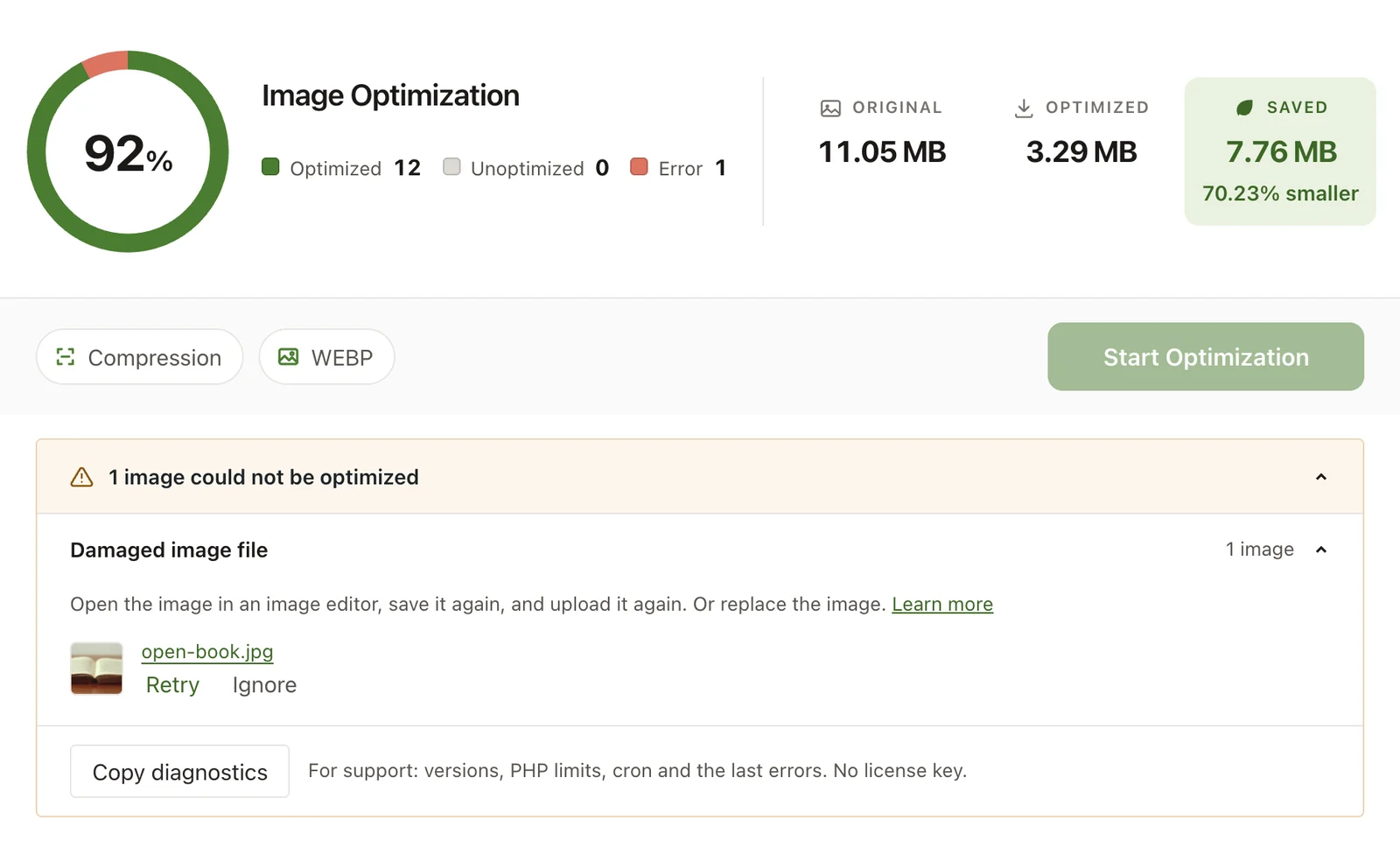
Until now, a failed image mostly showed up as a number in the error count. Now a Failures section groups failed images by reason, such as a damaged file or a missing one, and says what to do about it. Each image has a Retry button, or Ignore if you don’t need it.
Check that visitors actually get WebP
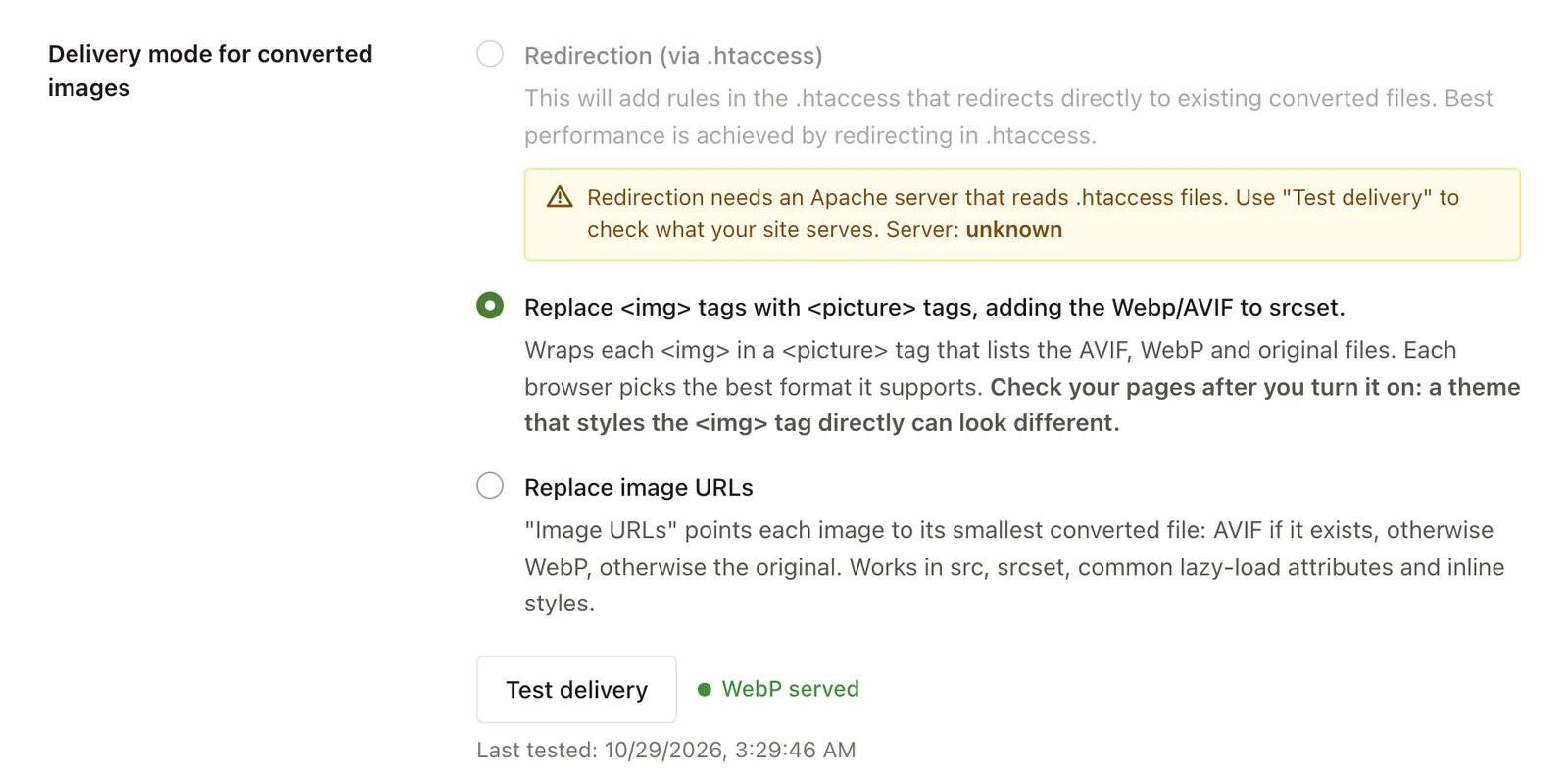
Converting images to WebP only helps if visitors receive the new files. The new Test delivery button in Settings checks what your site really sends to a browser and tells you whether WebP (or AVIF on Robin Pro) arrives. If your server needs extra rules, Robin shows them ready to copy. More on how WebP delivery works in WordPress.
Ready for WordPress 7.1
WordPress 7.1 can compress some new uploads in your browser before they reach your server. Robin 2.1 works alongside it, and still takes care of the images already in your library, WebP conversion and delivery. Here’s what WordPress 7.1 does and doesn’t do for your images.
Ask your AI assistant to do it
Robin now works with AI assistants like Claude, ChatGPT and Cursor. Connect one to your site with the Easy MCP AI plugin, then ask in plain words: “optimize my media library”, “convert everything to WebP” or “restore the original of this image”.
Updating
Update Robin from Dashboard › Updates like any other plugin. Your settings and optimization history move over automatically, and your optimized images stay as they are. The full changelog lists every fix in 2.1.
Tip: Open Robin › Settings after updating and click Test delivery. It takes a few seconds and tells you whether your visitors are already getting the lighter files.